Android Is Becoming a Desktop OS. BlueStacks Desktop Shows You If Your App Is Ready.
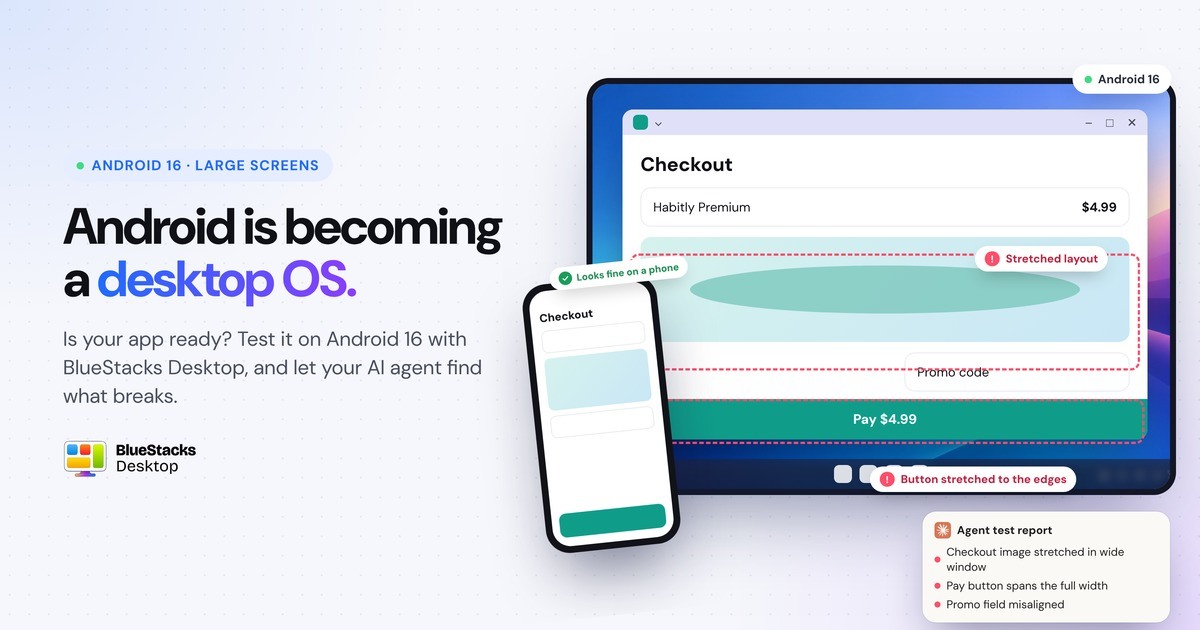
Google Play now requires every new app and app update to target Android 16, so any app that has shipped a recent update already runs under the new rules. The biggest change is on large screens. Developers used to be able to lock an app to portrait mode, which left a narrow strip with black bars on tablets and desktops. Now, on tablets, foldables and desktop windows, Android 16 ignores that lock and stretches the app to fill the window. Some categories are exempt, and developers can opt out for now, but Google says the opt-out is temporary. As a result, apps built only for portrait phones can show stretched layouts, buttons pushed to the edges or cut-off content.
The catch: you need Android 16 to see any of this
These behaviours need two things at once: an app that targets Android 16 and a device that runs Android 16. Test on an older version of Android, and the app falls back to the old rules.
Developers can test Android 16 in Android Studio. But QA, product and support teams often check apps on their own phones or a PC emulator, which usually run older versions of Android. An app can look fine there while users on Android 16 tablets, foldables and desktop windows see something different.
What this means for your team
- QA: re-test the flows built most tightly for a tall, narrow screen, such as onboarding, checkout, forms and fixed bottom bars, in a wide window on Android 16.
- Product: large screens are no longer edge cases. A layout that breaks on a big screen shows up in screenshots and reviews.
- Teams using AI agents: an agent testing your app on an older Android sees the old version of it. It needs to see what your users see.
How to test your app on Android 16 with BlueStacks Desktop
BlueStacks Desktop runs Android 16 on Windows, and every app opens in its own resizable window. That makes it a quick way to see your app the way large-screen users now see it.
How to test your app on Android 16 with BlueStacks Desktop
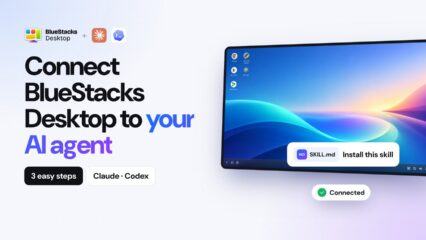
BlueStacks Desktop runs Android 16 on Windows, and every app opens in its own resizable window. With the BlueStacks Desktop, your AI agent (Claude/Codex) can do the testing for you. Watch the video on how to set it up.
1. Install BlueStacks Desktop on your Windows PC.
2. Add the BlueStacks Desktop skill to your AI agent, such as Claude Code or Codex.
3. Give your agent one prompt. For example:
“Open [your app] in BlueStacks Desktop and widen the window to tablet size. Walk through onboarding, sign-in and checkout. Tell me about any stretched layouts, buttons pushed to the edges, cut-off content, text hidden under the system bars, or back-gesture problems.”
4. Review what it finds. Your agent runs the flows and reports what looks wrong, so you can go straight to fixing it.