How to Play Dragon Ball Legends on PC with BlueStacks

Dragon Ball Legends takes one of the longest-running and most popular anime out there to give fans the hands-on experience to control and collect their favorite characters. All this and more in action-packed gameplay that surpasses all expectations for a mobile game! It’s one of the most entertaining games on the Android store and deserves to be on your to-play list, even if you aren’t a fan of the series. The best part about it is that it’s free-to-play, and so doesn’t completely rely on pay-to-win mechanics.
Dragon Ball Legends uses a fast-paced combat system that relies completely on the player’s quick-thinking and reaction speed to land or dodge attacks. Such actions can be difficult to execute when you’re playing on a small screen with your thumbs blocking half of the action. Factors like lag and refresh rate can also affect your success if you’re playing on a smartphone with low specs. All these problems can be solved immediately when you decide to play on BlueStacks today.
How to Install Dragon Ball Legends on PC
- Visit the game’s page and click on the “Play Dragon Ball Legends on PC” button.
- Once the installer finishes downloading, open it from your browser’s downloads area.
- Install BlueStacks and start it up on your PC or Mac.
- Log in to the Google Play Store, install Dragon Ball Legends, and begin your adventure.
How to Install Dragon Ball Legends on Mac with BlueStacks Air
- Download BlueStacks Air: Head to the game’s page and click the “Play Dragon Ball Legends on Mac” button to download the installer.
- Run the Installer: Double-click the BlueStacksInstaller.pkg file and follow the setup steps shown on your screen.
- Open and Sign In: Launch BlueStacks Air from Launchpad or the Applications folder, then sign in with your Google account.
- Install Dragon Ball Legends: Find Dragon Ball Legends in the Play Store and click install.
- Start Playing: Open the game and jump straight into battle.
For Players Who Already Installed BlueStacks
- Go to the game’s page and click the “Dragon Ball Legends on PC” button.
- Open BlueStacks on your computer.
- Install Dragon Ball Legends through the BlueStacks Store or Google Play Store.
- Launch the game and start fighting.
Minimum System Requirements
To run Dragon Ball Legends smoothly on your computer, your system should meet these basic requirements:
- Operating System: Microsoft Windows 7 or newer, macOS 11 (Big Sur) or newer
- Processor: Intel or AMD processor, or Apple Silicon (M1–M4)
- RAM: At least 4GB of RAM
- Storage: Minimum 10GB of free disk space
- Permissions: Administrator rights on your PC or Mac
- Graphics Drivers: Updated drivers from Microsoft or your hardware manufacturer
Useful Features When Playing Dragon Ball Legends on BlueStacks
Aside from the overall superior functionality that a computer has over the average smartphone, there are other reasons why you should choose to play on BlueStacks as well. BlueStacks has spent years developing useful features that help mobile gamers reach new heights in gaming that are difficult to achieve when playing on a smartphone. Here is a list of the best features that you can enjoy when playing on this platform and some short explanations for why you should use them.
-
Keymapping Tool
The Controls Editor Function or Keymapping Tool is a feature that allows the user to set keys on the keyboard as commands on the game’s screen. This means that you don’t have to worry about swiping your cursor on the screen to emulate actions that you would do on your smartphone. By converting commands such as swiping and double-tapping to keyboard commands, you save time and effort in executing critical actions at the right time and place.
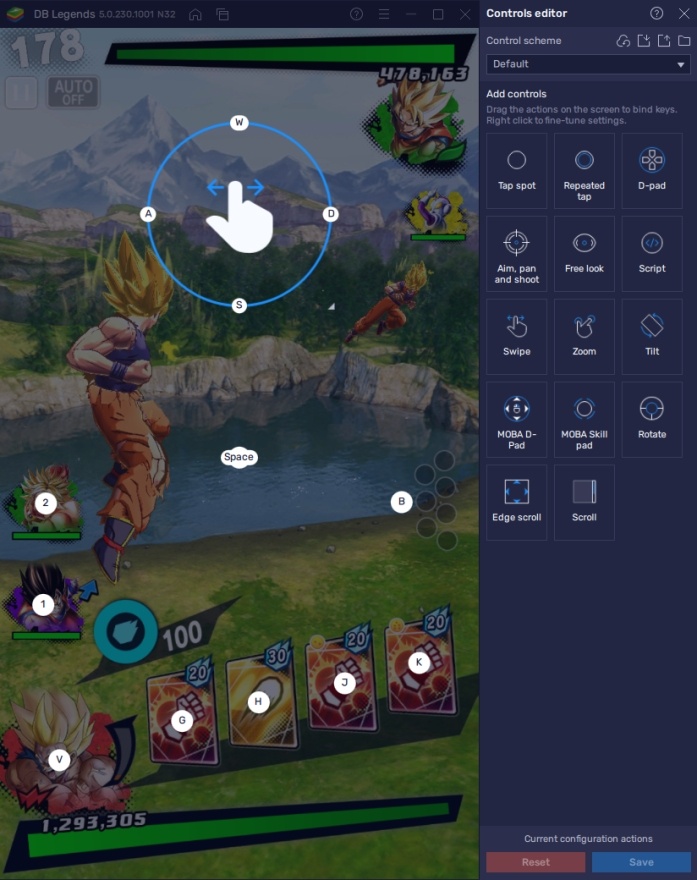
Dragon Ball Legends is extremely reliant on quick command execution to outplay the opponent, especially in PvP mode. One mistake can cause the opponent to take you down in a single fluid combo. To avoid making such mistakes, it’s better to rely on the accuracy of keyboard commands to complete your actions. If you’re not keen on the idea of creating your own set of command prompts, BlueStacks has a default page ready for you to use or edit, just in case.
-
Multi-Instance Function
The Multi-Instance Function is a feature that allows players to open two or more active applications at the same time, side-by-side. Unlike the split screen function available in some smart devices, the multi-instance function doesn’t share the same device’s screen, rather, it opens each one independently. This saves time when you’re trying to play multiple games at once, as it allows you to monitor the progress in each game without having to shuffle through multiple tabs.
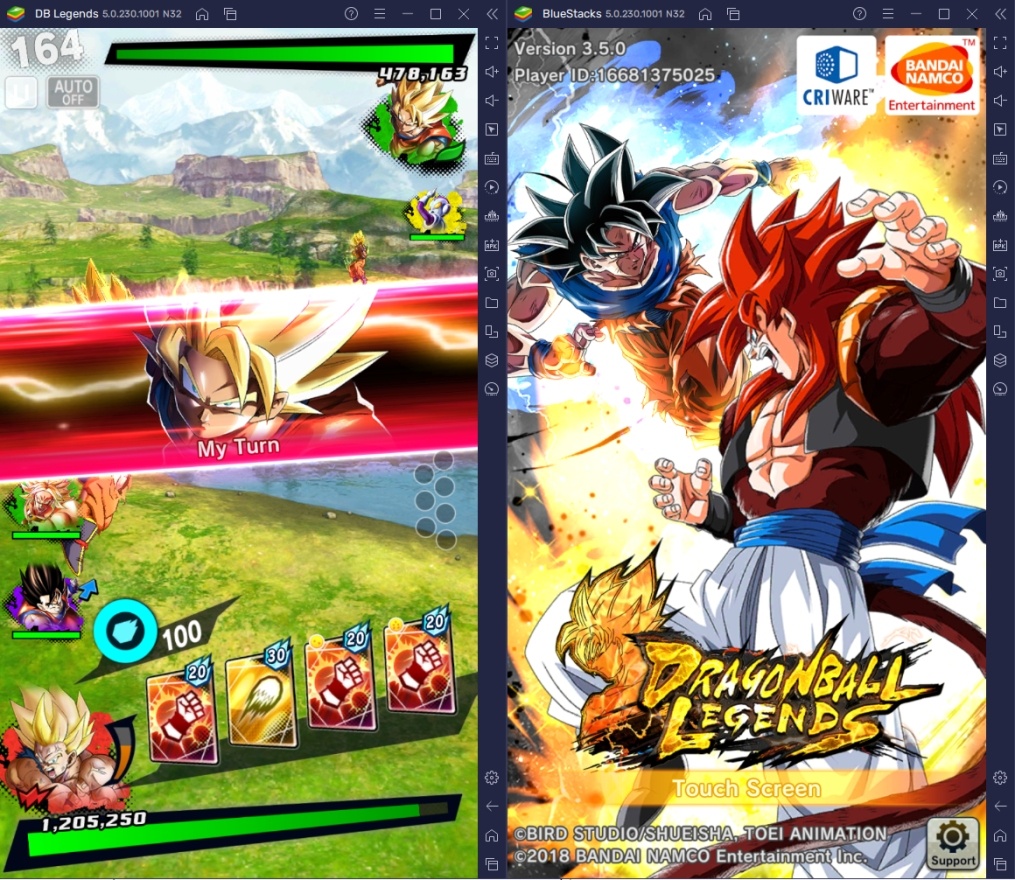
A great application of this function is when Multi-Instance Rerolling, which is the most popular usage of BlueStacks, especially for gacha games like these. While DB Legends doesn’t exactly have the most limited resources needed to get higher rarity characters, sometimes you just really need those characters that are on the upper end of the tier list. Once you have them, you’ll be ready when it comes to competing in PvP or the more difficult stages of the story.
-
Macro Feature
The Macro Feature allows the user to record a set of actions to be replayed at a later time. Players can record tedious actions such as farming items so that the user isn’t forced to stare and watch at his/her computer just for the sake of repeating game modes that reset every day. Grinding is one of the things that turns off a lot of players, but with a function like this, it should relieve a lot of the stress experienced when playing this game.
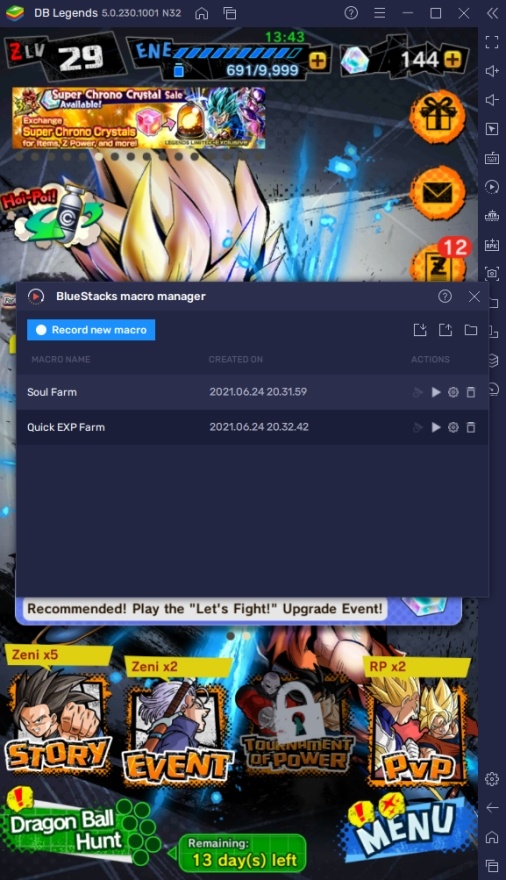
Dragon Ball Legends has its own auto-play/auto-battle function, but that renders the Macro Feature is completely useless. After all, the Macro Feature isn’t designed to play the game for you, such as creating an auto-combat feature. You can combine both the auto-battle and Macro commands so that you can at least skip 80-90% of the things that you might not have the effort for in this game.
Experience Dragon Ball Like Never Before
The Dragon Ball Legends storyline takes the most popular characters in the different timelines of the Dragon Ball saga and places them in one game to compete in what’s called The Tournament of Time. All the characters stay true to their original character backgrounds and personalities to bring a sense of nostalgia for long-time fans and context to new players. The game also introduces some characters that are important to explain the current Dragon Ball Universe.
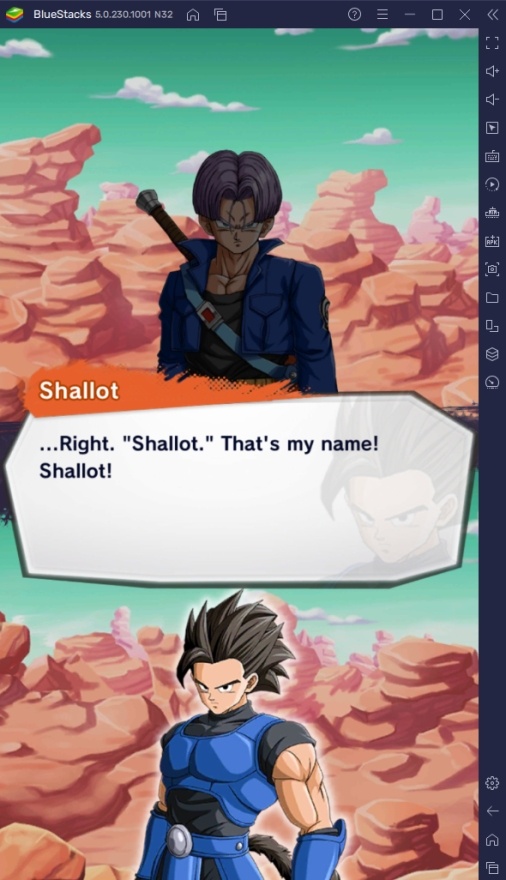
Now that you have Dragon Ball Legends on your computer, it’s time to put your skills to the test by competing against other players to see who will be the true champion in this game. Put your favorite characters in the arena and fight alongside them in exciting battles to prove who the best character is once and for all. Enjoy playing DRAGON BALL LEGENDS on PC or laptop with BlueStacks!