Free Fire Ben 10 Emulator Guide BlueStacks Smart Keymapping and Macros

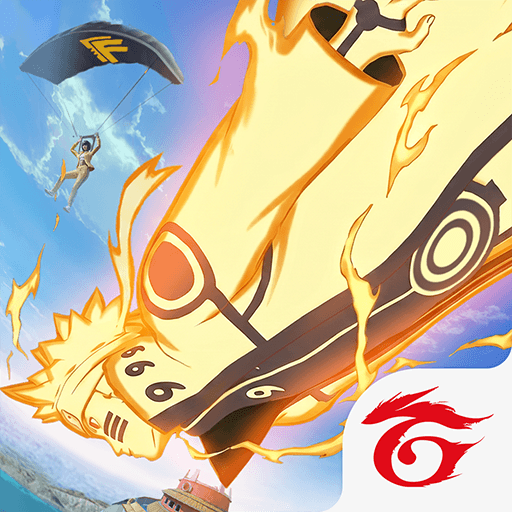
It’s Hero Time in Bermuda. Garena has officially confirmed that Free Fire x Ben 10 starts on November 30, 2026, which gives PC players about a month to get ready. This Free Fire Ben 10 Emulator guide shows you how to set up Free Fire on BlueStacks with smart keymapping, use macros without putting your account at risk, and fix the bugs that usually pop up when a big collab goes live.
Free Fire Ben 10 Release Date: What Garena Has Confirmed
Early leaks pointed to October 15, but that date passed with no Omnitrix in sight. On October 23, Free Fire Brazil posted official art showing the Omnitrix, the Cartoon Network logo and a November 30 start date. Garena’s North America, LATAM and Africa channels have since shared the same date, so November 30 is the one to plan around.
- Collab status: Confirmed by Garena with official Cartoon Network branding.
- Start date: November 30, 2026.
- Start time and end date: TBA.
- Game version: Expected to arrive during the current OB55 version, since the next major update is only expected in mid December.
- Items and prices: Not revealed by Garena yet. Everything in the next section comes from leaks.
Leaked Free Fire Ben 10 Items and What They Mean for PC Players
Data miners found a full set of Ben 10 items in the OB55 files back in August. Garena has not confirmed any of them, so names and unlock methods can still change.
- Ben Tennyson Classic, Gwen Tennyson Classic and Lucky Girl: Three character bundles based on the original cartoon.
- Ben 10 Look Changer: An Artifact rarity transformation item linked to Heatblast and Alien X. How it triggers is still TBA.
- Alien X Power Emote: A separate emote that is worth binding to its own key.
- MAG-7 Ben 10: An Epic shotgun skin with leaked attributes of Range +2 and Reload Speed +1, while Movement Speed drops by 1.
- Diamondhead Machete: An Epic melee skin. Early leaks called it a Katana, so the final name may differ.
- Rustbucket Jeep: Grandpa Max’s RV as a Jeep skin, listed in game files as Grandpa Max’s Trailer.
- Omnitrix Backpack, Ben 10 Skyboard and Parang Skin: Smaller cosmetics that leaks suggest could be free.
- Ben 10 Tickets and Tokens: Event currencies whose exact use is still unknown.
Leaks also point to a Ben Tennyson Ring event in Luck Royale. For a closer look at every leaked skin and the expected spin cost, check our Free Fire x Ben 10 rewards and skins guide.

How to Set Up Free Fire on BlueStacks for Ben 10
The first step in this Free Fire Ben 10 guide is making sure your emulator and game are ready before launch day.
- Update BlueStacks to the latest version. Older builds had an issue where Free Fire controls stopped responding, which BlueStacks fixed in later updates.
- Install or update Free Fire from the Play Store inside BlueStacks.
- Link your Free Fire account to a Google or Facebook login. Guest accounts can lose progress if you reinstall or switch instances.
- Open BlueStacks Settings and give the game 4 CPU cores and 4GB of RAM if your PC can spare them.
- Turn on High FPS, start at 90 FPS, and lower it if matches feel choppy.
- Pick a Performance Mode that suits your RAM: Low Memory for 8GB or less, Balanced for 8GB to 16GB, and High Performance above 16GB.
- Inside Free Fire, turn on High FPS and choose a graphics level your PC can hold steady.
Open the game a day before November 30 so any patch finishes downloading early. Launch day servers get busy, and nobody wants to spend the first hour of Hero Time stuck on a loading bar.

Best Free Fire Ben 10 Keymapping With BlueStacks Smart Controls
Smart Controls is the feature that makes Free Fire feel like a real PC shooter. It locks your cursor for aiming during fights and frees it on its own when you open the map, your bag or a loot box, so you are not pressing F1 every few seconds. To turn it on, click the Game Controls button on the side toolbar, open the Scheme drop down menu and pick the Smart Control scheme. You can read more about how it works in our breakdown of the improved Smart Controls for Free Fire.
These are the default Free Fire keys on BlueStacks:
- W, A, S, D: Move
- Shift: Sprint
- C and Z: Crouch and prone
- Mouse: Aim and look around
- Left and right click: Fire and scope
- R: Reload
- 4 and 5: Heal and grenade
- Q: Gloo Wall
- E: Character skill
- V: Free look
- Y: Akimbo
- F1 or hold X: Free your mouse cursor

To add your own keys, open the Advanced Editor with Ctrl + Shift + A, drag a Tap Spot onto any button on the screen, assign a key and click Save. The full list of control types is on the BlueStacks Game Controls page. A few custom binds are worth adding for the Ben 10 collab:
- Emote key: Put a Tap Spot on the emote button so the Alien X Power emote or Look Changer animation is one press away.
- Melee key: Bind the melee slot so you can pull out the Diamondhead Machete and move faster while rotating.
- Vehicle keys: Check your drive and exit keys before taking the Rustbucket Jeep for a spin.
If your aim feels jumpy, right click the Aim, Pan and Shoot control and lower Mouse Sensitivity a little. BlueStacks also suggests turning off Enhance pointer precision in Windows mouse settings for steadier aim, which helps a lot with close range MAG-7 flicks in Shooting Mode. Once everything feels right, click Export in the Advanced Editor to save your scheme as a .cfg file. If an event update ever resets your controls, you can import it back in seconds.
How to Use BlueStacks Macros in Free Fire Ben 10 Without Risking Your Account
Macros let you record a set of taps once and replay them with a single key. Press Ctrl + Shift + 7 to open the Macro Recorder, click Record new macro, do the taps, then stop the recording and give it a name and a key. The gear icon lets you change playback speed, loop a macro a set number of times, or merge two macros into one. You can also export macros as .json files to keep a backup. Our BlueStacks Macros guide covers every option in detail.
Here is the honest part. Garena’s fair play rules treat macros that give an edge in a match as cheating, and using them can get an account banned. BlueStacks also notes that macros only work in games where the developer allows them. So keep macros out of your matches completely, and if you use them at all, stick to simple lobby routines.
Fine for lobby taps:
- Opening the Ben 10 event tab from the lobby
- Claiming finished mission rewards
- Moving between the Vault and event pages to check new cosmetics
Keep macros away from:
- Anything inside a live match, including aim, fire, healing or Gloo Wall combos
- Luck Royale, the store and any screen where one wrong tap spends diamonds
- Long loops while you are away from your PC
Common Free Fire Ben 10 Emulator Bugs and How to Fix Them
Big collab launches bring heavy server traffic and fresh game files, and that is when most PC issues show up. These fixes solve the majority of them.
- Crash or black screen at launch: Update your GPU drivers, then try a different Interface renderer in BlueStacks Settings under Graphics and restart.
- Lag or FPS drops: Close background apps, enable Virtualization, check your CPU and RAM split, and lower the FPS cap if frames jump around.
- Controls not responding: Update BlueStacks to the latest version, then import your saved keymap again.
- Cursor stuck in aim mode on event screens: Press F1 to toggle Shooting Mode, or hold X to free the cursor for a moment.
- Shaky or uneven aim: Lower Mouse Sensitivity in Aim, Pan and Shoot and switch off Enhance pointer precision in Windows.
- Game stuck loading after an update: Create a new instance with a different Android version. Link your account first so nothing is lost.
- Low storage warning: Run Disk Cleanup from the User data tab in BlueStacks Settings.
- Long ranked queues: Emulator players only face other emulator players in ranked, so the pool is smaller. Squad up with PC friends or queue during busy hours.
For a deeper walkthrough of every setting, read our BlueStacks lag, crash and FPS fix guide.
Free Fire Ben 10 on Emulator: Matchmaking and Reward Rules
Playing on PC is allowed, but Garena keeps PC and mobile players apart in ranked. In ranked Battle Royale and Clash Squad, emulator players only match against other emulator players. If even one squad member is on an emulator, the whole squad joins the emulator pool, and an icon in team invites shows who is on PC. Garena also keeps emulator accounts off the ranked and weapon leaderboards.
None of this touches your event progress. Ben 10 missions, tokens and rewards are tied to your account, so anything you unlock on BlueStacks shows up on your phone too, as long as you log in with the same linked account.
Players can enjoy playing Free Fire on a bigger screen of their PC or Laptop via BlueStacks along with your keyboard and mouse, and Smart Controls make every MAG-7 flick feel like a true PC shooter.