Purble Place (Original) – How to Play Purble Pairs on BlueStacks with Custom Keymapping
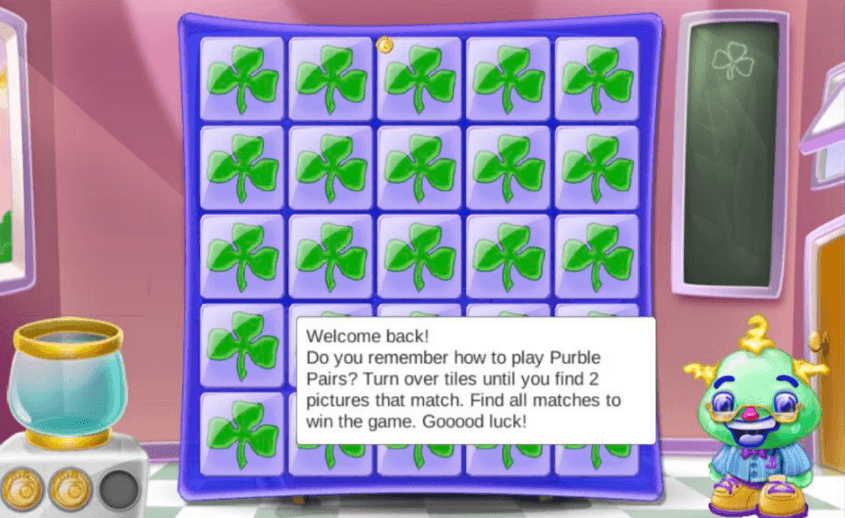

Purble Place is a familiar name for many players who grew up playing simple, colorful games. Its card-matching gameplay is easy to understand, but finding matching pairs can become challenging as you try to remember the positions of different cards. If you enjoy playing this type of memory game on a PC, using BlueStacks to run the Android version of Purble Place is one option to consider.
BlueStacks lets you use keyboard controls with supported Android games. With a little setup, you can assign keys to specific screen positions and make certain actions more convenient. The exact setup depends on the game interface and the controls available in your BlueStacks version.
What Is Purble Pairs?
Purble Pairs is a memory-based card-matching game in which you uncover cards and try to find matching images. The main challenge is remembering where you saw each picture so you can make the correct matches later.
At first, the game feels straightforward. However, as you uncover more cards, keeping track of their positions becomes increasingly important. A little concentration and a consistent approach can help you avoid unnecessary guesses.

If you’re playing a version of Purble Place that includes a card-matching mode, the basic strategy remains simple: reveal cards carefully, remember their locations, and use that information when searching for a match.
How to Play Purble Place on BlueStacks
Before setting up your keyboard, install the Android version of Purble Place through a supported source and open it in BlueStacks. The Android version should not be confused with the original release, as their available content and features may differ.

Once the game is running, take a moment to understand how its interface works. Identify where the cards appear, how you reveal them, and whether any on-screen buttons are needed during a round.
This initial check is useful because keyboard controls depend on the layout displayed in the game. It also helps you decide whether custom keymapping would make your preferred way of playing more comfortable.
How to Set Up Custom Keymapping
BlueStacks provides a Game Controls menu that lets you manage keyboard controls and, where supported, create custom mappings. You can use this feature to assign keyboard keys to positions on the game screen.
Follow these steps to explore the available options:
- Open Purble Place in BlueStacks and wait for the game screen to load.
- Open the Game Controls menu from the BlueStacks side toolbar.
- If the game does not have a suitable existing control scheme, check whether you can create or edit a profile.
- Choose the Tap Spot control, if available, and place it over the screen position you want to activate.
- Assign a keyboard key to that position.
- Save your changes and test the mapping in the game.
- Repeat the process for other positions if needed.
The exact menu labels and available options can vary depending on the BlueStacks version. If a shortcut does not work, use the controls menu directly.
It is also worth testing each mapping before relying on it during a round. A key assigned to a screen position only triggers the corresponding on-screen action; it does not automatically identify matching cards or play the game for you.
Tips for Choosing Keyboard Controls
A useful keymapping setup should feel comfortable rather than complicated. You do not need to assign a key to every possible action straight away. Start with the controls you use most often and expand the setup only if it helps.

Keep your controls consistent
If you assign keys to different screen positions, choose a layout that is easy to remember. A consistent arrangement can reduce the time you spend looking for the correct key.
Test before starting a full round
Try each assigned key and check whether it activates the intended position. If a mapping feels awkward or triggers the wrong area, adjust it before continuing.
Avoid unnecessary key assignments
Adding too many controls can make a simple game harder to manage. Focus on the actions that are useful to your play style.
Keep the layout comfortable
Choose keys that are easy to reach without forcing your hand into an uncomfortable position. You can change your setup whenever you find a more convenient arrangement. For more details on setting up keyboard controls, check out the official BlueStacks Game Controls guide. It explains how to use keyboard controls and customize your setup for supported games.
How to Improve at Purble Pairs
Custom keyboard controls can change how you interact with the game, but remembering the cards is still the central challenge. A few simple habits can help you approach each round more systematically.
Pay attention to every revealed card
When a card appears, take a moment to remember its image and position. Even if it does not match the card you need, the information may be useful later.
Remember positions in groups
Instead of trying to memorize the entire board at once, focus on smaller sections. You might remember the cards near the top first, then work your way through the remaining areas.

Use unsuccessful turns as information
Revealing two different cards is not necessarily wasted effort. If you remember both positions, you have learned something that can help you make a better choice later.
Take your time when possible
Rushing can make it easier to forget where you saw a particular image. Concentrate on remembering each reveal instead of focusing only on how quickly you can finish.
Build a repeatable routine
Follow the same general approach each round: observe the cards, remember their positions, and use what you have learned to guide your next move.
Is Custom Keymapping Worth Trying?
That depends on how you prefer to play. Some players are comfortable using a mouse, while others prefer keyboard shortcuts or want to experiment with a different control arrangement.
Custom keymapping gives you another way to interact with supported games in BlueStacks. However, it does not guarantee faster completion or better results. Your experience will depend on the game’s interface, the mappings you create, and how comfortable you feel using them.

If the default controls already work well for you, there is no need to change them. If you want to try keyboard controls, begin with a small setup and adjust it based on your experience.
Final Thoughts
Purble Pairs combines simple card matching with a memory challenge that rewards concentration and careful observation. Playing the Android version of Purble Place through BlueStacks gives you the option to explore keyboard controls alongside the usual on-screen interaction.
Start by learning the game’s interface, create custom mappings only where they are useful, and test them before relying on them. Most importantly, focus on remembering card positions and making thoughtful choices. A comfortable control setup can support your preferred way of playing, while practice helps you become more familiar with the game.
If you want to try the Android version on a computer, you can explore Purble Place on PC with BlueStacks and see whether its available controls suit your play style.