Lucky Drop
Lucky Drop

Lucky Drop

Casual

| BethelApps

Play on PC with BlueStacks or from our cloud

  • Overview
  • Game Features
  • How to Play

Page Modified On: October 23, 2026

Play Lucky Drop on PC or Mac

Explore a whole new adventure with Lucky Drop, a Casual game created by BethelApps. Experience great gameplay with BlueStacks, the most popular gaming platform to play Android games on your PC or Mac.

About the Game

Lucky Drop is a Casual aim-and-toss charmer where precision feels great and near-misses make you grin and go “one more try.” Line up your shot, tweak the angle, and send a stream of marbles pinging through tricky layouts packed with targets and obstacles. It’s chill when you want it to be, surprising when you least expect it, and perfect for quick breaks or longer streaks. Prefer a bigger screen? It plays smoothly on PC with BlueStacks, too.

Game Features

  • Pick-up-and-play controls: Drag to set your angle and power, then release—no long tutorials, just instant action.
  • Satisfying physics: Crisp bounces, clean impacts, and punchy effects make every perfect shot feel extra rewarding.
  • Creative stages: From simple starter boards to elaborate obstacle courses, each level mixes fresh ideas with clever layouts.
  • Smart challenges: Limited shots, special targets, and tricky ricochet paths push your judgment, timing, and accuracy.
  • Pace that fits you: Knock out a quick level on a break or settle in to chase a flawless clear and beat your best runs.
  • Clear goals, no fuss: Easy rules keep the focus on aiming and execution—no clutter, no confusion.
  • Smooth performance: Snappy response and fluid animations keep the action feeling light, clean, and consistent.
  • Replay-friendly design: Revisit stages to refine angles, tighten your aim, and set new personal records.
  • Regular new content: Fresh level packs and mode twists roll in to keep the experience feeling new without changing what works.

Start your journey now. Download the game on BlueStacks, invite your friends, and march on a new adventure.
Game Features

Enhancements

  • Macros
  • Multi Instance
  • Script
  • Repeated Tap
  • Enhancements
Macros

Macros

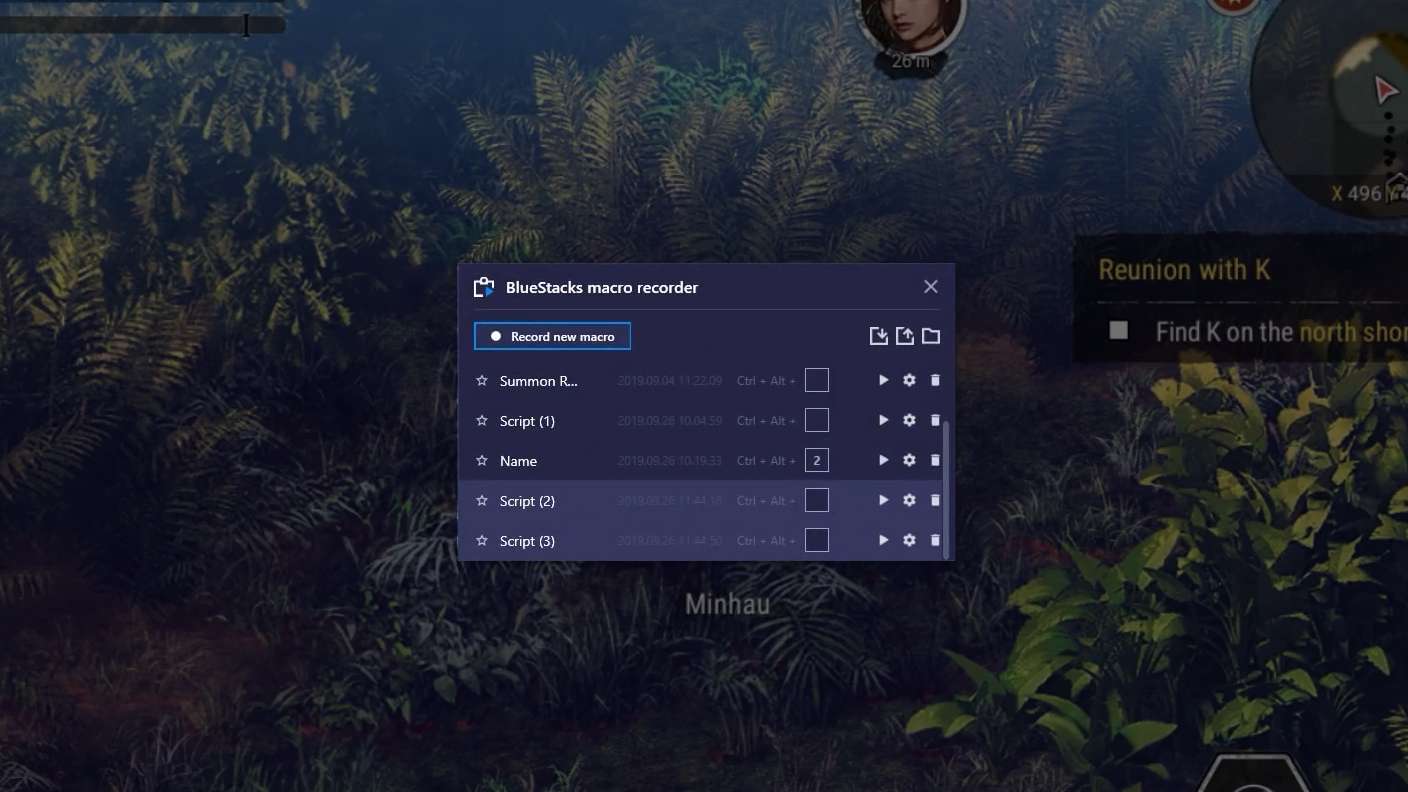
Automate the predictable in Lucky Drop and transform your gameplay with Macros. Get access to inventive Macros in the BlueStacks Macro Community
Multi Instance

Multi Instance

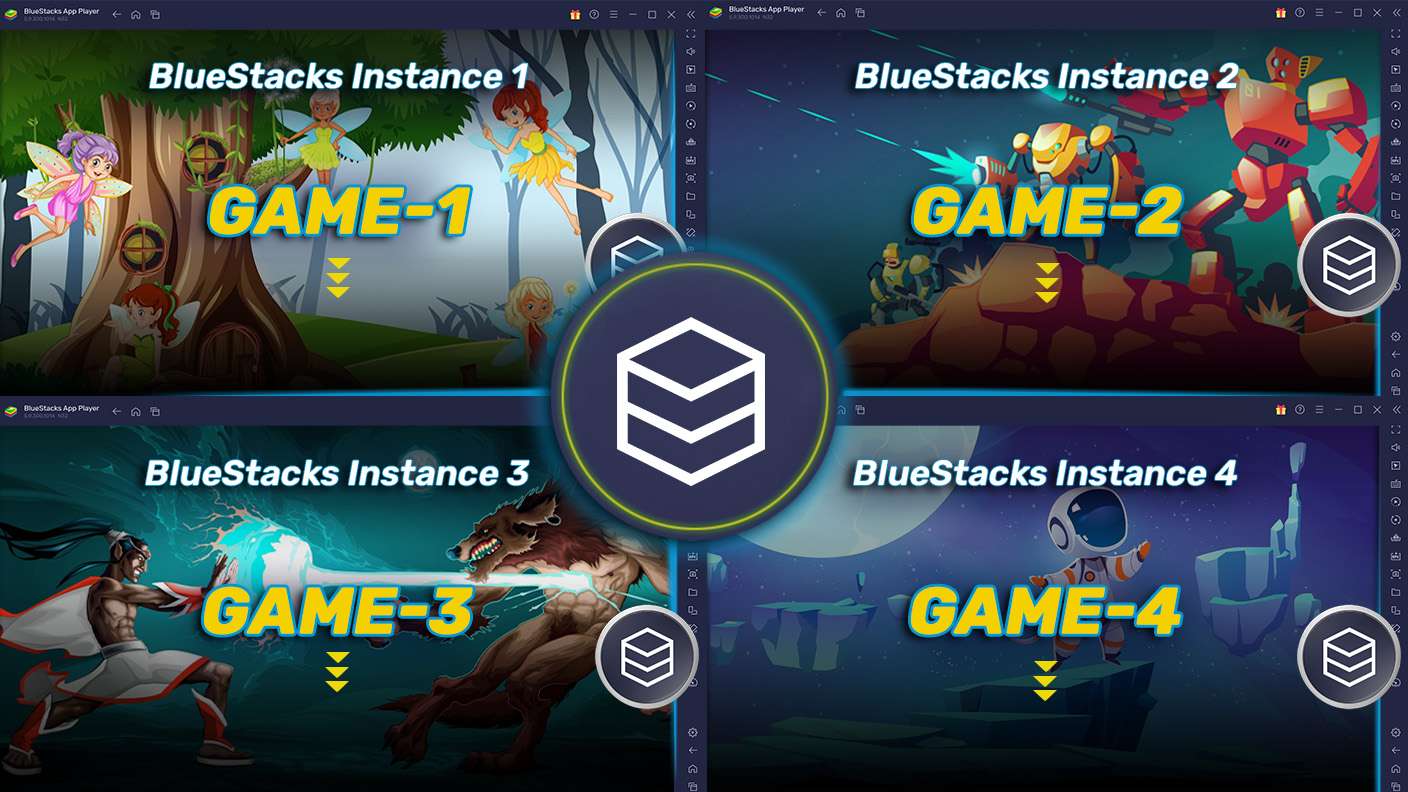
Play Lucky Drop on one window. And chat with your friend on the other. Press CTRL + Shift + 8 to open the Multi-Instance Manager. And start creating fresh instances or clone an existing one.
Script

Script

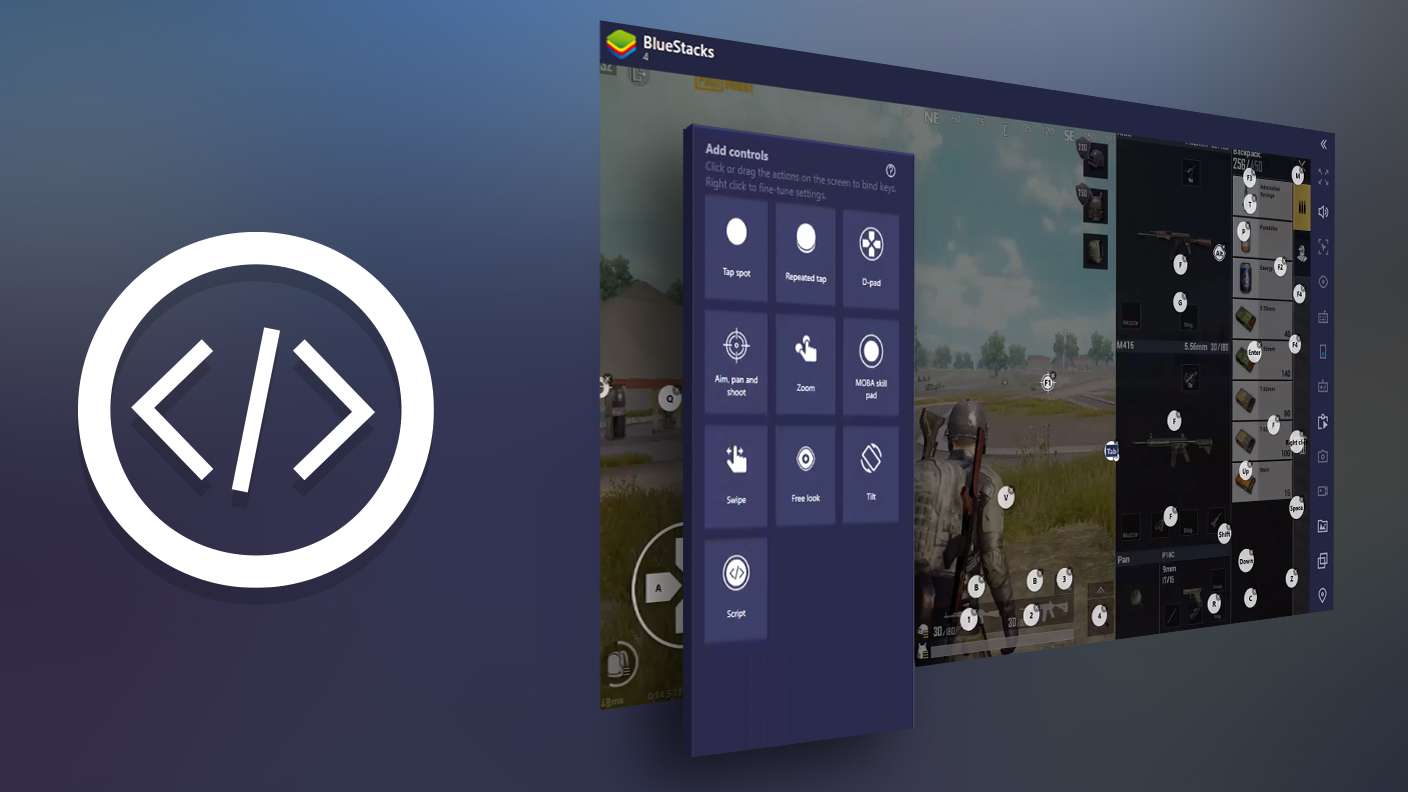
Script your way to gaming glory in Lucky Drop with BlueStacks Script. Write and run a set of commands to automate repeated tasks. Trigger the command by assigning it to any key.
Repeated Tap

Repeated Tap

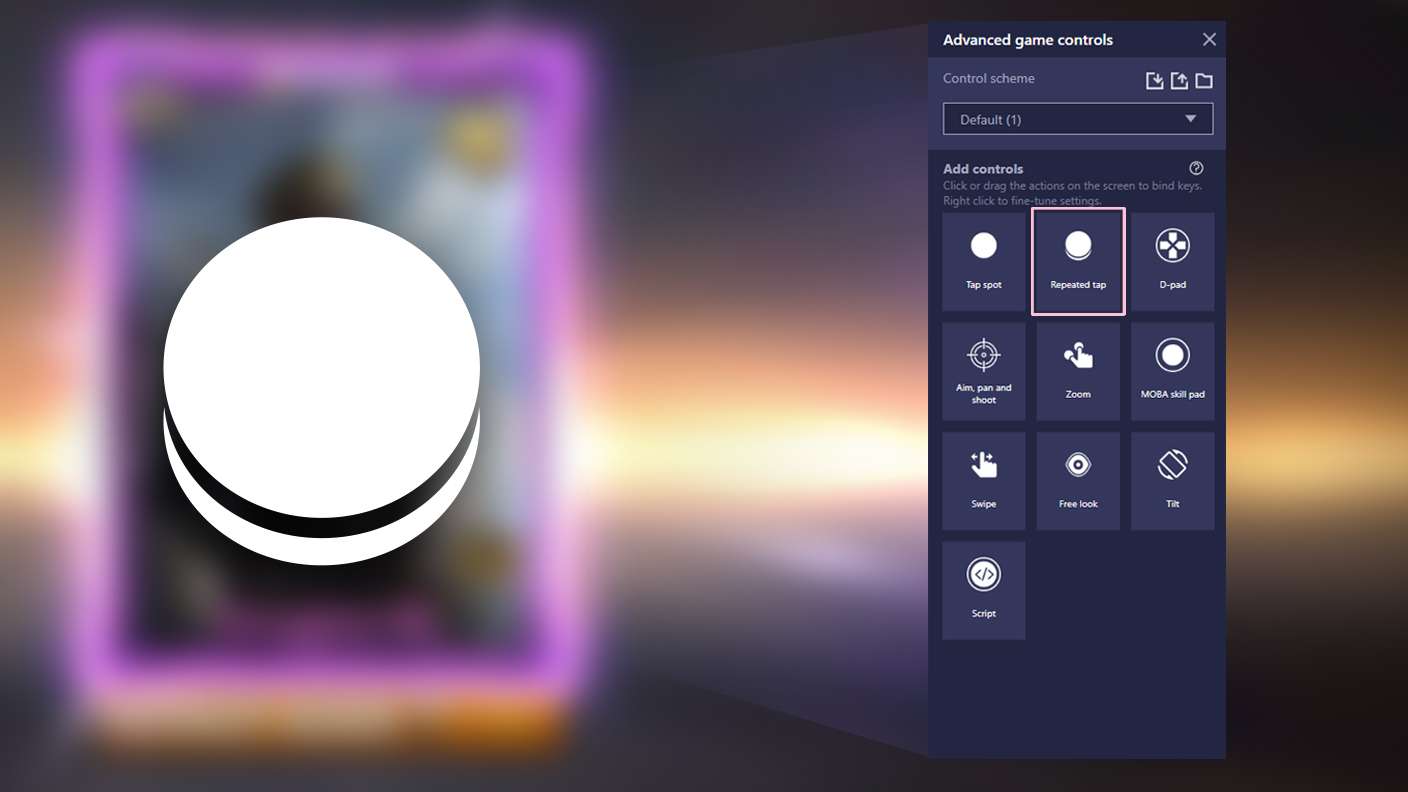
BlueStacks lets you master Lucky Drop with useful features like the Repeated Tap. Now you do not have to press the same key repeatedly to initiate an action. Just assign it to one key and you are good to go.
Read More

How to Download and Play Lucky Drop on PC or Mac

  • Download and install BlueStacks on your PC or Mac

  • Complete Google sign-in to access the Play Store, or do it later

  • Look for Lucky Drop in the search bar at the top right corner

  • Click to install Lucky Drop from the search results

  • Complete Google sign-in (if you skipped step 2) to install Lucky Drop

  • Click the Lucky Drop icon on the home screen to start playing

video
Watch Video

Minimum System Requirements

With BlueStacks 5, you can get started on a PC that fulfills the following requirements.

  • Operating System

    Microsoft Windows 7 or above, macOS 11 (Big Sur) or above

  • Processor

    Intel, AMD or Apple Silicon Processor

  • RAM

    at least 4GB

  • HDD

    10GB Free Disk Space

Note:

* You must be an Administrator on your PC. Up to date graphics drivers from Microsoft or the chipset vendor.

Lucky Drop - FAQs

  • How to play Lucky Drop on Windows PC & Mac?

    Play Lucky Drop on your PC or Mac by following these simple steps.

    • Click on 'Play Lucky Drop on PC’ to download BlueStacks
    • Install it and log-in to Google Play Store
    • Launch and play the game.
  • Why is BlueStacks the fastest and safest platform to play games on PC?

    BlueStacks respects your privacy and is always safe and secure to use. It does not carry any malware, spyware, or any sort of additional software that could harm your PC.

    It is engineered to optimize speed and performance for a seamless gaming experience.

  • What are Lucky Drop PC requirements?

    Minimum requirement to run Lucky Drop on your PC

    • OS: Microsoft Windows 7 or above MacOS 11 (Big Sur) or above
    • Processor: Intel, AMD or Apple Silicon Processor
    • RAM: Your PC must have at least 4GB of RAM. (Note that having 4GB or more disk space is not a substitute for RAM)
    • HDD: 10GB Free Disk Space.
    • You must be an Administrator on your PC.