Send files to TV : Files Share

Send files to TV : Files Share

Productivity

| Universe AppHub

Play on PC with BlueStacks or from our cloud

  • Overview
  • How to Download

Page Modified On: December 15, 2025

Run Send files to TV : Files Share on PC or Mac

Let BlueStacks turn your PC, Mac, or laptop into the perfect home for Send files to TV : Files Share, a fun Productivity app from Universe AppHub.

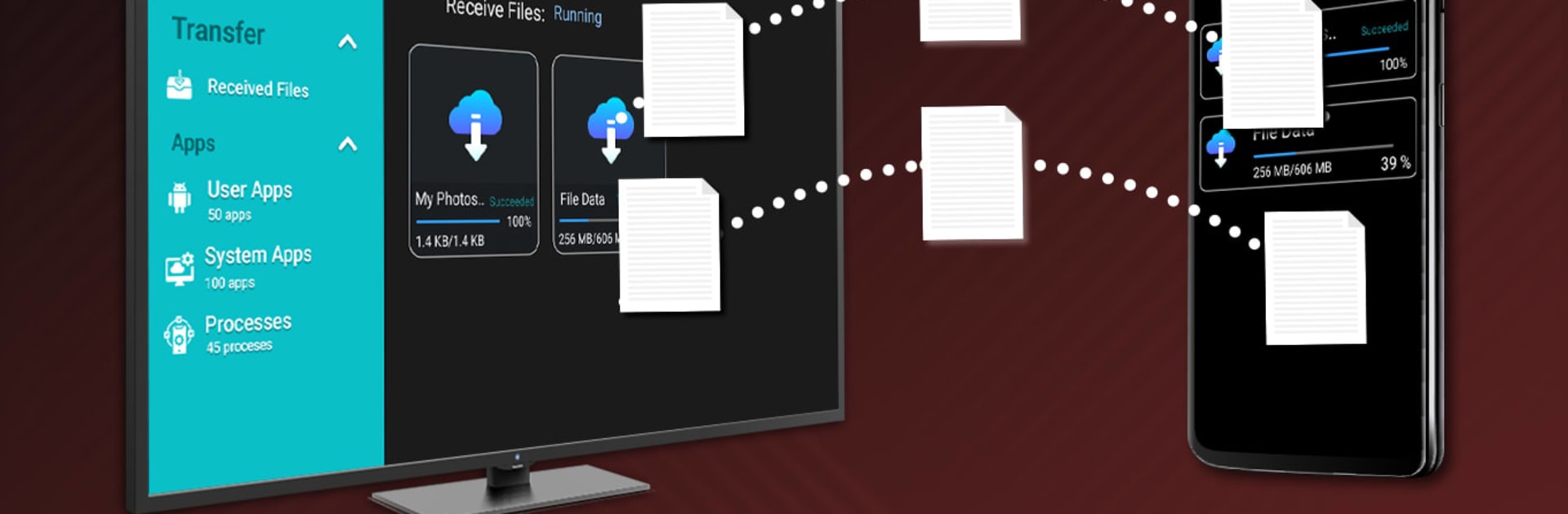
Send files to TV: Files Share feels like a no-nonsense tool that does what it says. It connects devices over the same Wi-Fi and moves files straight across the local network, so no internet or cables needed. Both sides open the app, hit Send, pick whatever needs to go across photos, videos, PDFs, ZIPs, even APKs and long press if multiple files are going. The receiving device name pops up, tap it, and the transfer starts. Speeds are far better than Bluetooth, and large items like a movie or a big archive go through quicker than expected. Everything stays local, so there is no weird cloud hop or third party in the middle. It will ask for storage permission so it can read and save files, and there is a simple setting to choose the folder where incoming stuff gets stored. The interface is plain, clean, and there is a dark theme for night use.

On BlueStacks, it is easy to browse big folders with a mouse and pick multiple files without fat-finger mistakes, which makes organizing and sending a bit smoother. As long as the PC running BlueStacks and the TV or phone are on the same Wi-Fi, it works the same. No fluff, no complex setup, just open, choose files, send. It handles a lot of formats, does not complain about file size much, and it keeps everything in a spot that can be changed later if needed. For anyone wanting a quick way to move files to a TV or between phones without burning data, this keeps things simple and gets out of the way.

BlueStacks brings your apps to life on a bigger screen—seamless and straightforward.

How to Download and Run Send files to TV : Files Share on PC or Mac

  • Download and install BlueStacks on your PC or Mac

  • Complete Google sign-in to access the Play Store, or do it later

  • Look for Send files to TV : Files Share in the search bar at the top right corner

  • Click to install Send files to TV : Files Share from the search results

  • Complete Google sign-in (if you skipped step 2) to install Send files to TV : Files Share

  • Click the Send files to TV : Files Share icon on the home screen to start playing

video
Watch Video

Minimum System Requirements

With BlueStacks 5, you can get started on a PC that fulfills the following requirements.

  • Operating System

    Microsoft Windows 7 or above, macOS 11 (Big Sur) or above

  • Processor

    Intel, AMD or Apple Silicon Processor

  • RAM

    at least 4GB

  • HDD

    10GB Free Disk Space

Note:

* You must be an Administrator on your PC. Up to date graphics drivers from Microsoft or the chipset vendor.

Send files to TV : Files Share - FAQs

  • How to Run Send files to TV : Files Share on Windows PC & Mac?

    Run Send files to TV : Files Share on your PC or Mac by following these simple steps.

    • Click on ‘Download Send files to TV : Files Share on PC’ to download BlueStacks
    • Install it and log-in to Google Play Store
    • Launch and run the app.
  • Why is BlueStacks the fastest and safest platform to play games on PC?

    BlueStacks respects your privacy and is always safe and secure to use. It does not carry any malware, spyware, or any sort of additional software that could harm your PC.

    It is engineered to optimize speed and performance for a seamless gaming experience.

  • What are Send files to TV : Files Share PC requirements?

    Minimum requirement to run Send files to TV : Files Share on your PC

    • OS: Microsoft Windows 7 and above:
    • Processor: Intel or AMD Processor:
    • RAM: Your PC must have at least 2GB of RAM. (Note that having 2GB or more disk space is not a substitute for RAM):
    • HDD: 5GB Free Disk Space.
    • You must be an Administrator on your PC.