

Why limit yourself to your small screen on the phone? Run Gboard – the Google Keyboard, an app by Google LLC, best experienced on your PC or Mac with BlueStacks, the world’s #1 Android emulator.
About the App
Gboard – the Google Keyboard is a fast, flexible way to type, search, and express yourself—without breaking your flow. It brings Google smarts right to your keys, so you can glide, speak, handwrite, or translate while you type. It’s a polished Tools essential that feels at home on big screens, watches, and even when you’re running apps on BlueStacks.
App Features
- Glide Typing: Slide your finger from letter to letter for quick, smooth text entry that keeps up with fast conversations.
- Voice Typing: Say what you want to write and let the keyboard do the rest—great for hands-free moments or when you’re multitasking.
- Handwriting: Scribble in cursive or print, and watch your handwriting turn into clean, editable text.
- Emoji and GIF Search: Find the perfect emoji or reaction GIF in seconds, then drop it right into your message.
- Multilingual Typing: Type in multiple languages at once—Gboard recognizes and suggests across your enabled languages automatically.
- Translate as You Type: Built-in Google Translate helps you write in another language on the fly, right from the keyboard.
- Massive Language Support: Get comfortable typing in hundreds of language varieties, from English, Spanish, and French to Hindi, Arabic, Korean, Chinese, and more.
- Wear OS Support: Type on your wrist with glide and voice input, plus quick access to your favorite emojis on Wear OS.
- Smart Gestures: Move the cursor by sliding across the space bar, and delete chunks of text with a quick swipe from the backspace key.
- Number Row and Symbols: Pin a dedicated number row on top and reveal symbol hints with long-press for faster edits.
- One-Handed Mode: Shift the keyboard to the left or right on large screens for easier reach and comfy typing.
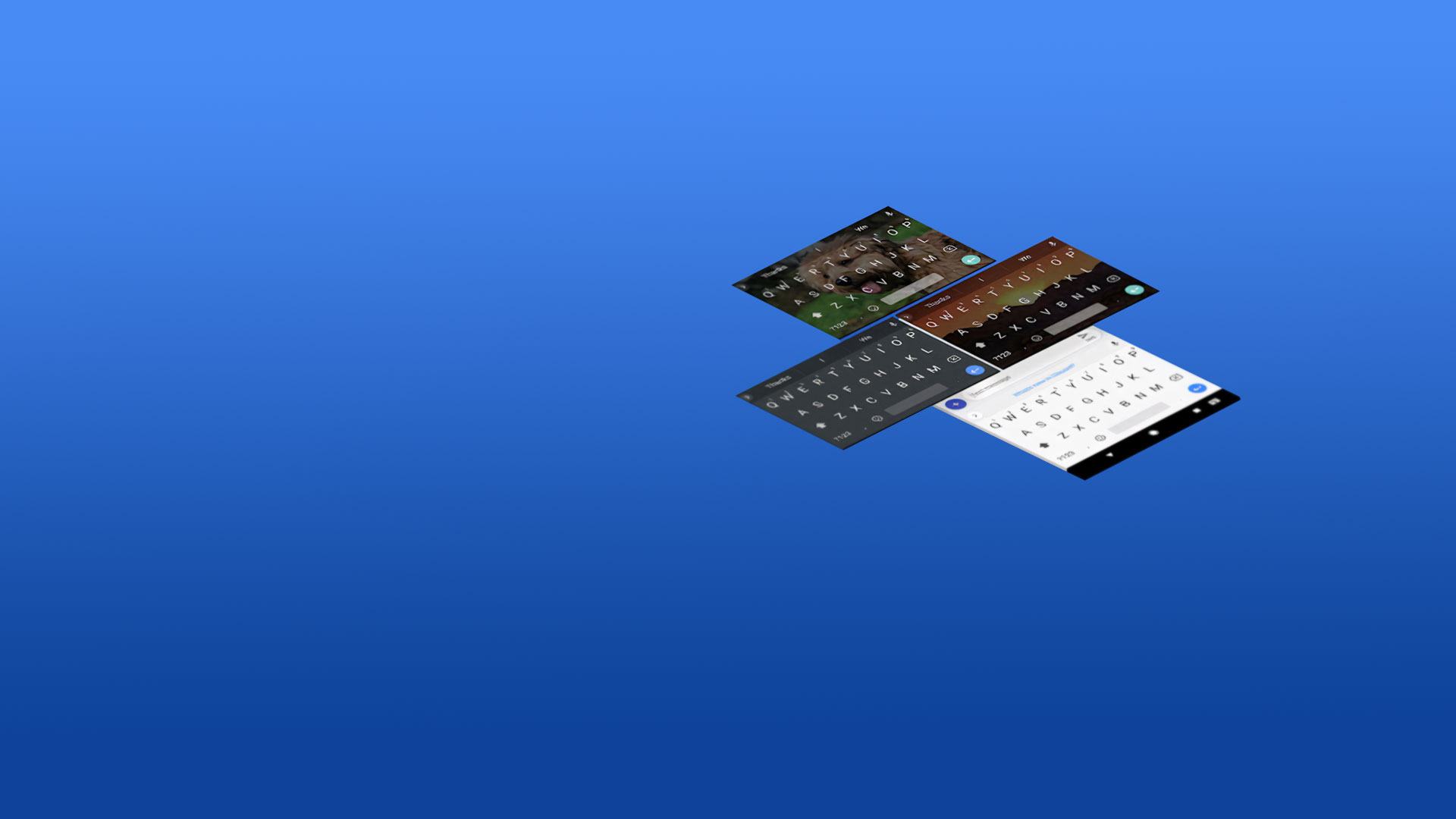
- Themes and Customization: Pick a look that suits you—colors, backgrounds, and optional key borders to match your style.
BlueStacks gives you the much-needed freedom to experience your favorite apps on a bigger screen. Get it now.