A Beginner’s Guide to FC Manager 26
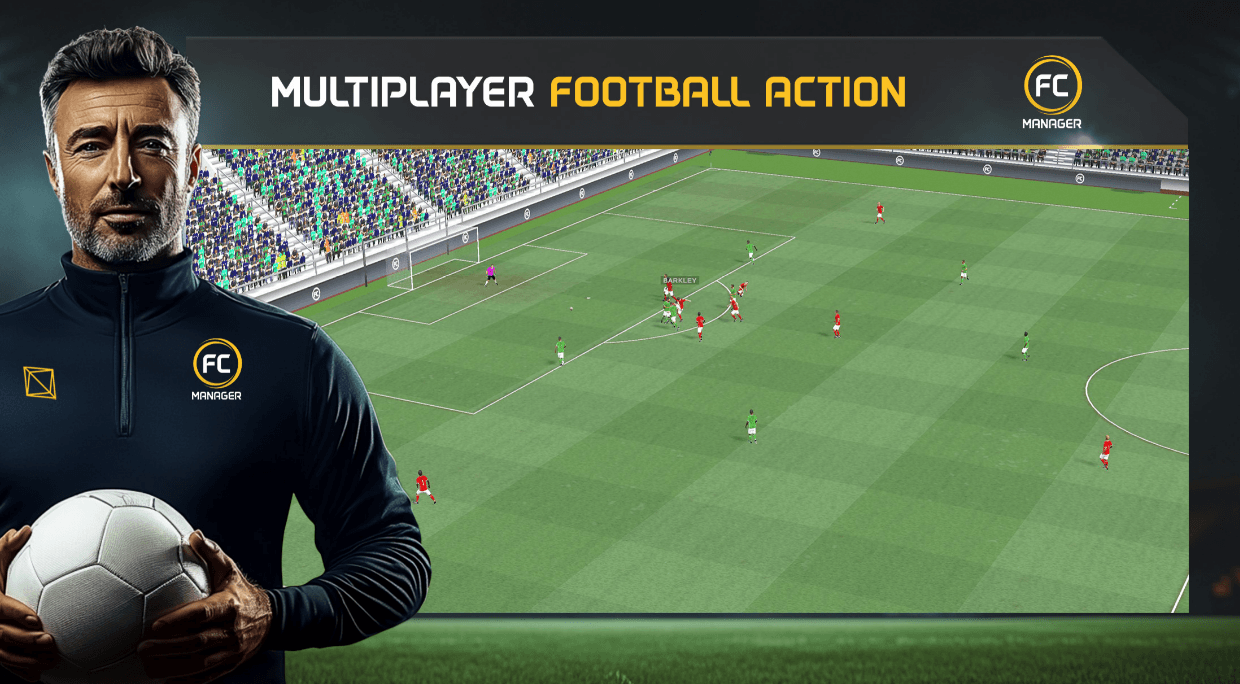

FC Manager 26 is an online football management game where you create a club, sign players, set tactics, and face real opponents in live matches as you climb through competitive leagues. This guide walks you through your first hours in the game, using the same menus and systems you see in your screenshots so you can progress efficiently without feeling overwhelmed.
Getting started and understanding the home screen
The home screen is your central hub, showing your upcoming fixture, league countdown timer, ongoing events, and shortcuts to Club, Training, Transfers, Competitions, and Facilities down the left side. At the top you see your club name, manager name, current premium currency (gold), cash balance, energy, and social or club-related icons.
Your upcoming fixture tile is critical because it tells you the opponent, their overall rating (OVR), and how well prepared your team is for the match. Before each game, make a habit of tapping this tile to open Match Preview so you can assess your opponent, fix issues like low morale or fitness, and confirm your tactics.

Setting up basic tactics and formation
The first thing the tutorial asks you to do is open the Club menu and go to Tactics, where you control formation, lineup, roles, and detailed instructions. Your tactics screen shows a full pitch with player cards placed in their positions plus several buttons on the left for Reserves, Formation, Roles, and Instructions.
As a beginner, stick to a balanced formation such as 4‑3‑3 or 4‑2‑3‑1 because these give you width, a solid midfield, and enough defenders to avoid being punished on counters. Make sure players are assigned to their natural positions (shown on their cards and on their detailed profile screen) to avoid OVR penalties and poor performances.

Choosing and adjusting your starting XI
Your initial lineup will include a mix of average players and one or two stronger cards, sometimes left on the bench by default, and the tutorial will highlight when your star player is not starting. To bring a key player into the XI, drag their card from the bench on the right and drop it onto the position you want them to play, replacing the weaker starter.
Try to keep a balanced team structure: at least two centre-backs, one or two fullbacks or wingbacks, a defensive midfielder, one or two central midfielders, and wide attackers or strikers depending on your formation. Early on, do not obsess over perfect chemistry; instead, make sure your best OVR players are on the pitch while respecting natural positions.

Using tactical instructions and player roles
Beyond the formation, FC Manager 26 lets you define high-level strategic instructions such as Hold the Ball, High Press, Counter Attack, Park the Bus, Play the Channels, and All Out Attack. Each option clearly explains the style: for example, Hold the Ball prioritises patient possession, while Counter Attack invites pressure and then breaks quickly once the ball is won.
For beginners, Hold the Ball or Play the Channels are safe defaults because they reduce chaos, limit turnovers, and let your team grow into matches, especially if your defence is not yet elite. You can later swap to Counter Attack or High Press when facing weaker teams or when you have fast forwards and enough squad depth to handle the extra stamina drain.
Player roles add another layer of depth by defining how each individual behaves within the system, such as Keeper, Wingback, Ball Playing Defender, Stopper, Box to Box Midfielder, Playmaker, or General Midfielder. For example, a wingback will overlap and contribute more in attack, while a Stopper defends aggressively and clears danger instead of carrying the ball out.
When starting out, you can accept the default roles suggested for each position, only tweaking where it obviously fits a player’s strengths, such as giving a technically strong central defender the Ball Playing Defender role or turning energetic midfielders into Box to Box Midfielders.

Running effective team training
Training is accessed from the Club Home or via the Training button on the left menu, and the game’s tutorial walks you through the Team Training screen. At the top of this interface you see your overall team OVR, team fitness percentage, and a “Boosts” button, while the main panel lists every player along with their XP bar and development status.
You can configure training in three main sections: Squad Focus (Lineup, Reserves, Youth), Position Focus (Defence, Midfielders, Forwards), and Intensity (Low, Medium, High on a slider). For your first few sessions, use Lineup + Reserves with Medium intensity so your main squad develops steadily without suffering frequent injuries or exhaustion.
Running a session consumes one of your daily training uses and starts a mini‑screen where you select specific drills, such as Slalom Dribble, Piggy In The Middle, or Offside Trap. After training, you see a Training Report that summarises level‑ups, improved players, and any injuries, helping you track who is progressing well.
Make a habit of: running at least one training session per in‑game day, checking which players levelled up, and adjusting future training to focus on weak areas—for example, targeting defenders if you concede too many chances.

Preparing for each match
Match Preview is one of the most important screens for beginners because it combines information about your own team and the opponent in one place. On the Overview tab you see both clubs’ OVR, stadium details, weather, and preparation level (for example, Good or Great), plus a key player highlight for the opposition.
The Preparation tab breaks down match readiness into fitness, injuries, morale, and other factors, with your Assistant Manager telling you exactly what needs attention, such as low average fitness or several players having poor morale. From here you can spend resources to restore fitness, boost morale, or run short match preparation training sessions to raise your preparation level before kickoff.
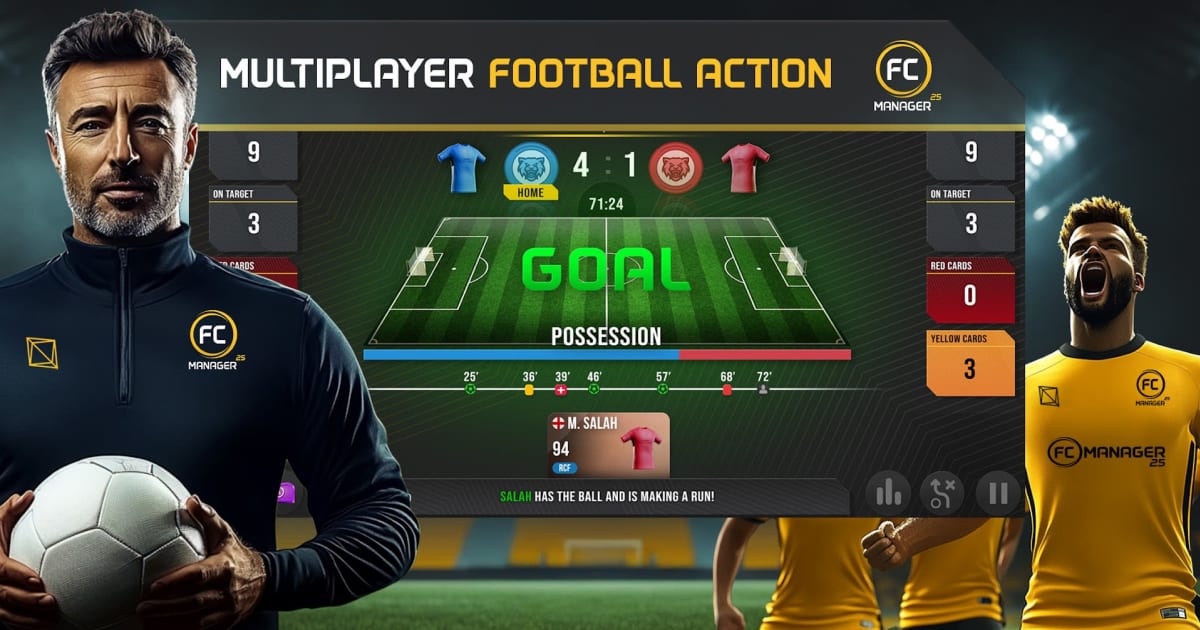
Once the match begins, you can watch a top‑down 3D view or focus on the statistics tab, which shows possession, shots, shots on target, corners, and disciplinary data for both sides. Use these stats to judge whether your tactics are working—if you have few shots and low possession, consider switching from Park the Bus to Hold the Ball or Play the Channels in future games.

Transfers, Spotlight players, and auctions
Transfers are where you significantly upgrade your team, accessed via the Transfers tab on the left menu. The Transfers hub includes several key areas: Spotlight (premium high‑OVR players), Transfer Market or Live Transfers (regular listings), and Scouting, as well as a Transfer Summary that tracks cash spent and received during the league.
Spotlight features top players, including limited editions, legends, and star professionals, available for a high transfer fee and often requiring premium currency; these are powerful but should be used sparingly if you play free‑to‑play. Live Transfers show a rotating list of players that other clubs are selling, giving you opportunities to find bargains or plug specific gaps in your squad without heavy premium spending.

Using scouting effectively
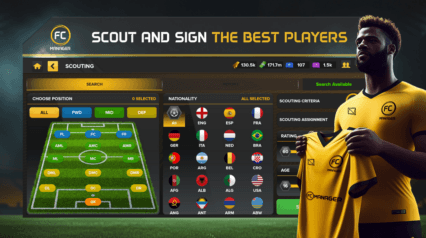
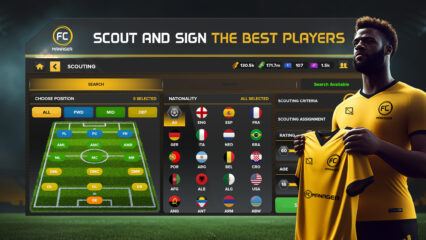
Scouting is a more targeted way to find players, letting you define the positions, nationalities, rating range, and age range you want before sending out a scouting assignment. Once the search is complete, the Report tab lists recommended players with their current rating, potential, position, age, and the cost in cash and premium currency to sign them, alongside an “Assistant Manager Recommends” highlight.
In your screenshots, the system suggests strikers such as João Félix and Ivan Toney, each with a rating of 76 but slightly different potential and price. Early in your save, prioritise players with solid current rating and good potential who fill urgent tactical needs, while keeping an eye on affordability so you do not cripple your wage and transfer budget.
If you attempt to sign a player but lack enough cash, the game presents an “Insufficient Currency” pop‑up, offering bundles of in‑game cash purchasable with premium gold. This is a signal to either adjust your transfer target to a cheaper player or to save up from objectives and matches rather than overspending on one marquee signing.

FC Manager 26 offers a deep yet accessible management loop built around tactics, training, transfers, and live matches, and if you follow this beginner’s framework by setting a balanced formation, running smart training, and spending carefully in the transfer market, you will steadily climb your league table and build a stronger squad each season. For the best gaming experience, play FC Manager 26 on BlueStacks!